


Your account
How to send messages on the website
Chat with other players, talk in your team and tournament groups, and message the CricoScore team. It is the same chat as in the app: a message you send on the website shows on your phone too.
Who can do this
Anyone with an account. The other player needs an account too.
Before you start
Sign in on the website. See How to sign in on the website.
Open your messages
Click (or tap on a phone) the speech bubble at the top right, next to the bell. A number on it shows how many messages are new. The Messages page opens.
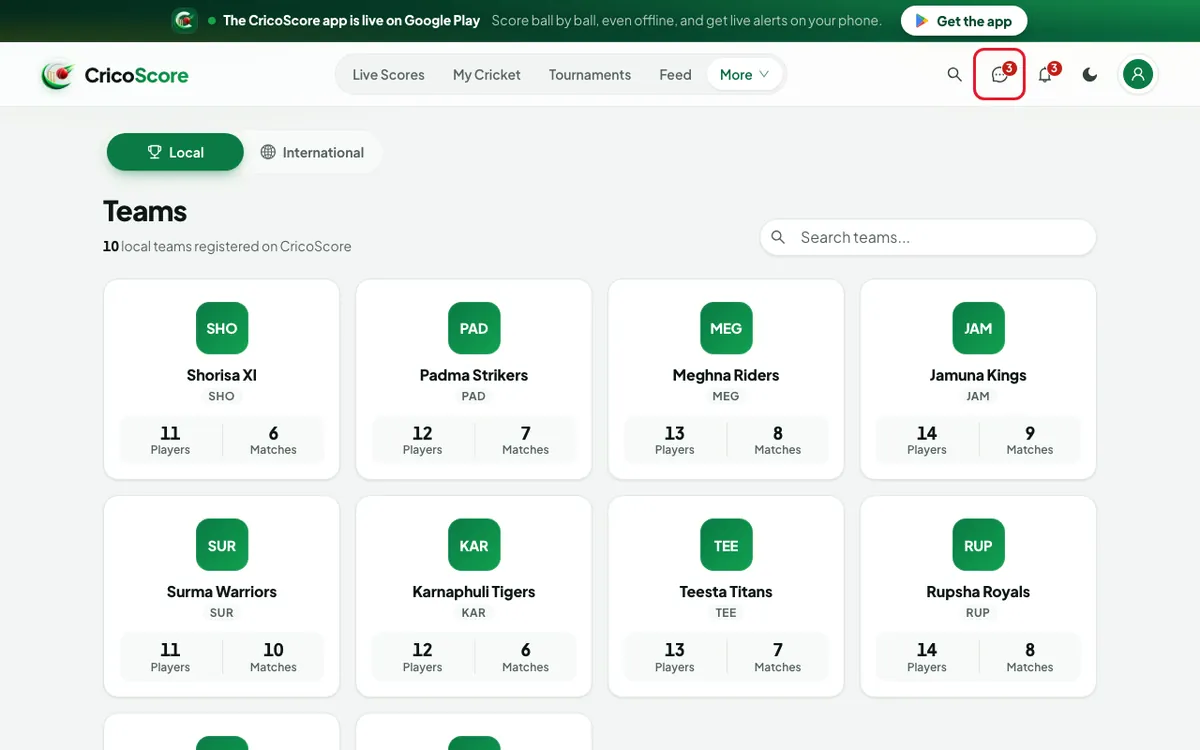
Picture 1. Tap or click to see it bigger. On the left you see your chats, your team and tournament groups, CricoScore support and Announcements. The newest is at the top. Click one to open it.
You can also click your picture at the top right, then click Messages.
Start a chat with a player
Open the player's profile. Click Message. The chat opens.
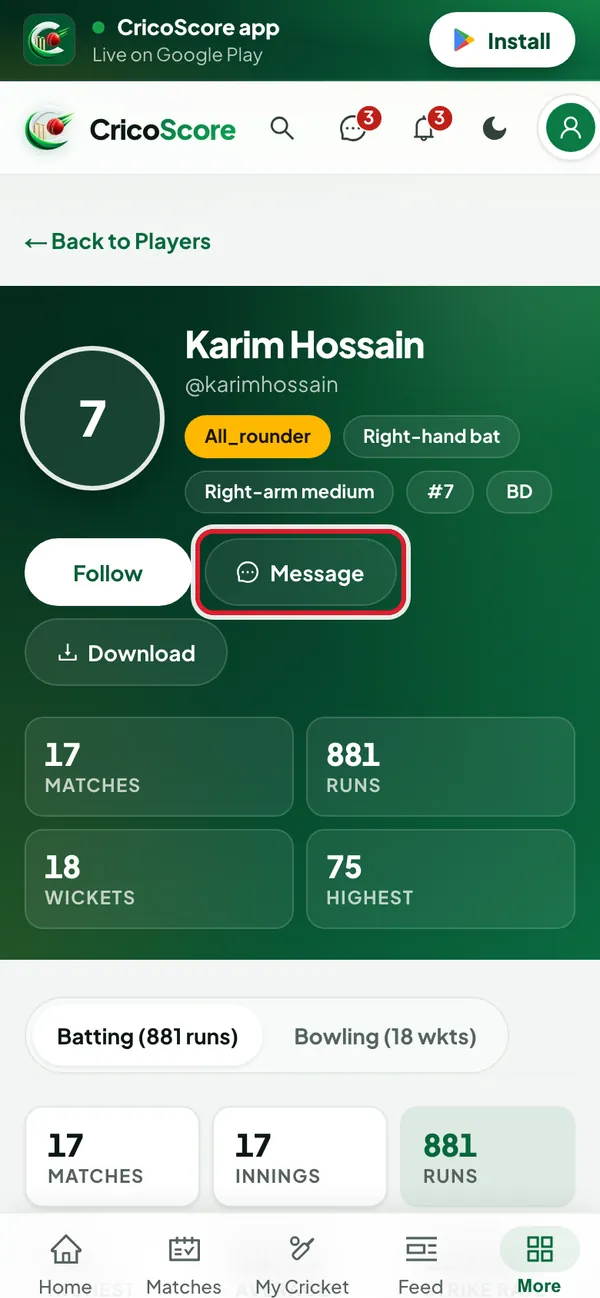
Picture 2. Tap or click to see it bigger. Or search for the player (the magnifier at the top). Next to a player with an account, click the round speech-bubble button.
Send a message
Click the Message box at the bottom. Type your text. Press Enter to send. Press Shift + Enter for a new line.
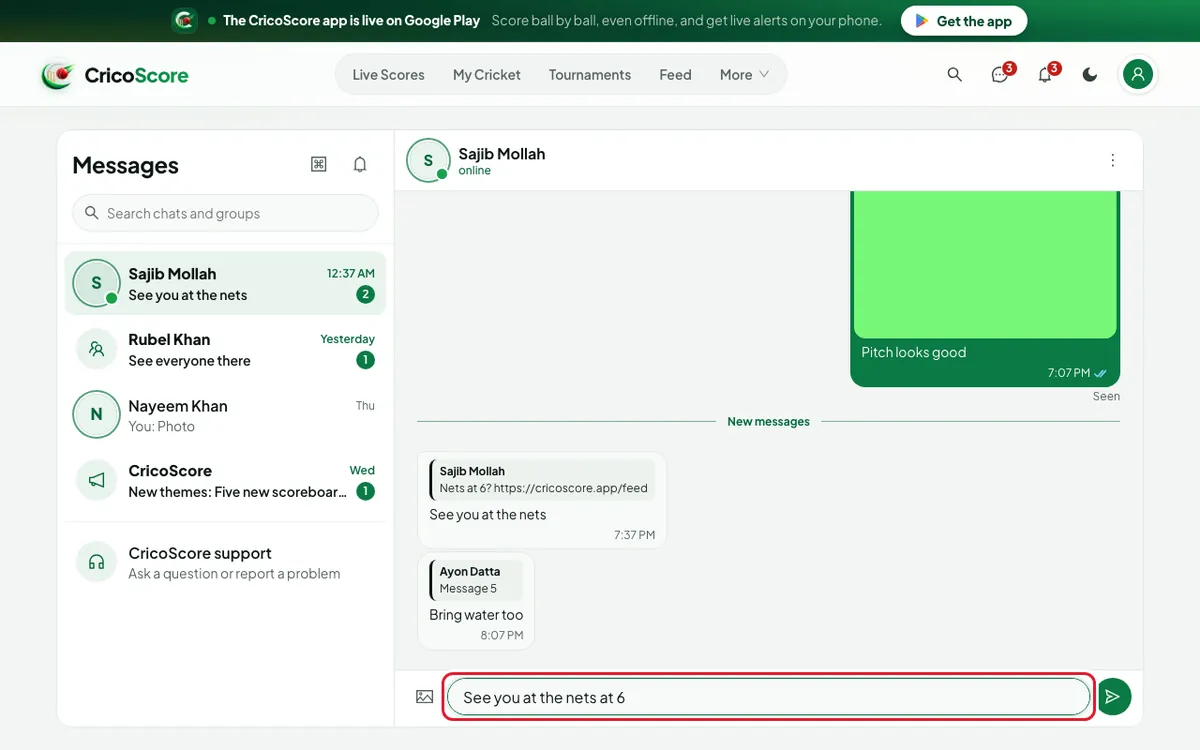
Picture 3. Tap or click to see it bigger. The first time, you see Before you post. Click I agree. You see it only once per account.
To send a photo, click the picture icon. You can also paste a photo, or drag it onto the chat.
To send a voice message, leave the box empty. Click the microphone and speak. Your browser asks to use the microphone the first time. Click the stop button, listen, then click send.
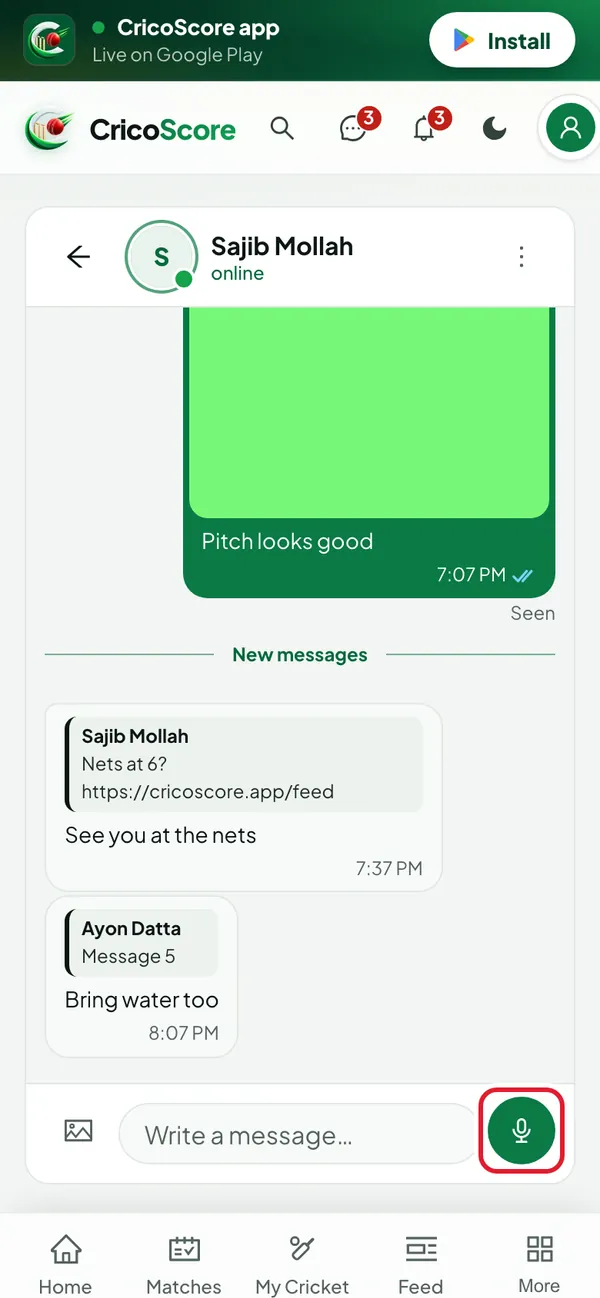
Picture 4. Tap or click to see it bigger.
Reply, react, edit or delete
Point at a message (or press and hold it on a phone). Small buttons appear. You can also right-click it.
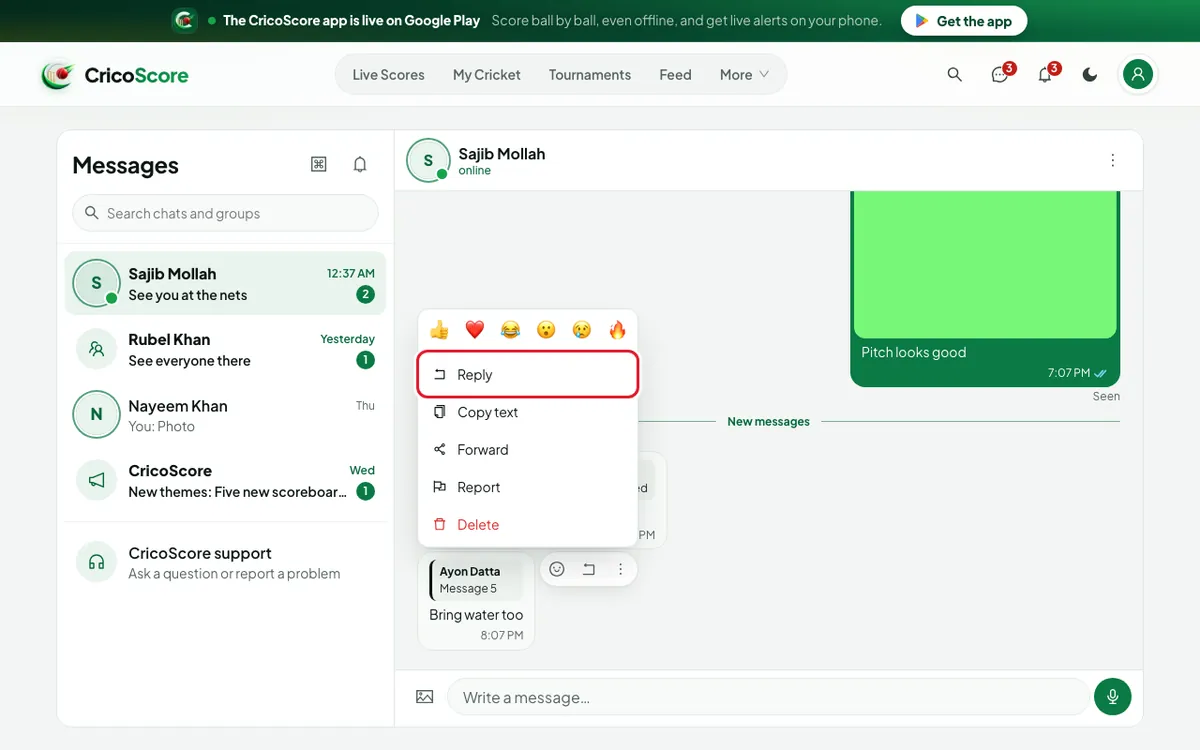
Picture 5. Tap or click to see it bigger. Click an emoji to react. Or click Reply, Copy text, Edit, Forward, Report or Delete.
For Delete, choose Delete for me. For your own message you can also choose For everyone.
You can Edit only your own text messages.
The ticks
| You see | It means |
|---|---|
| ✓ | Sent |
| ✓✓ grey | Delivered |
| ✓✓ coloured | Seen |
Team and tournament groups
Your team and tournament groups are in the same list. Everyone in the team or tournament is in the group. You can't add or remove people.
Open a group. Type @ and a name to mention someone.
Under your newest message you see who has seen it, for example Seen by Karim, Rahim +2.
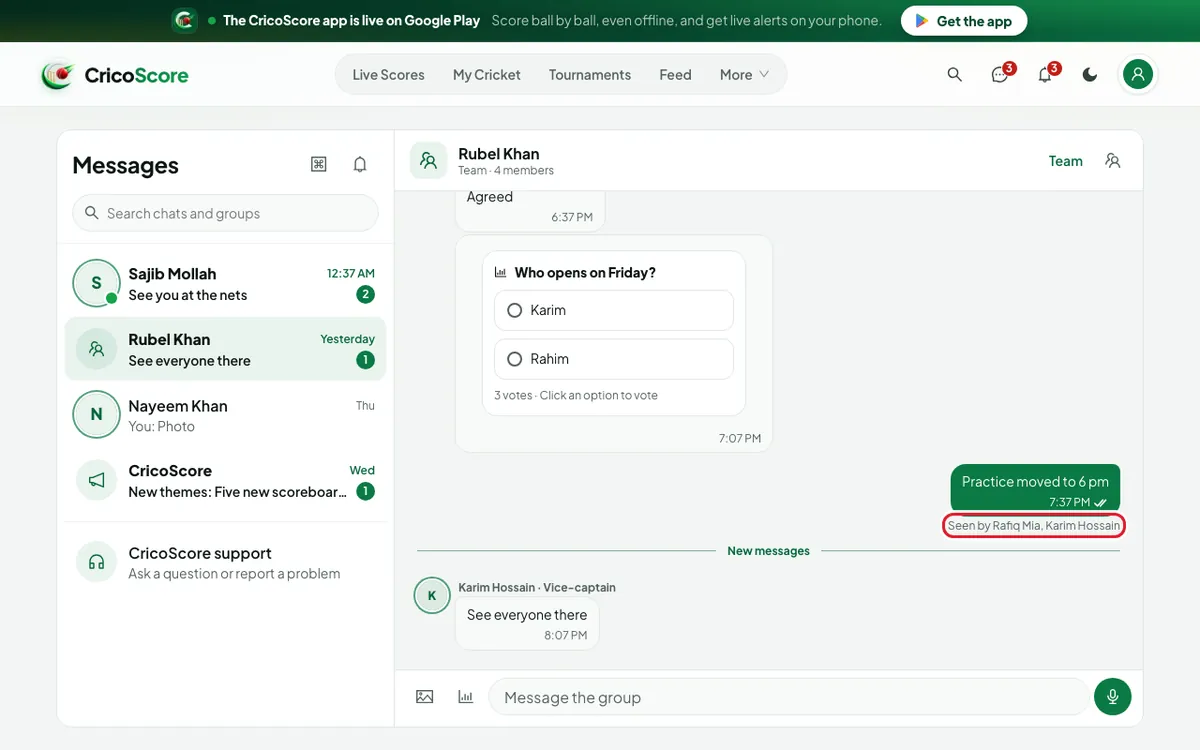
Picture 6. Tap or click to see it bigger. To make a poll, click the poll button next to the box.
Message the CricoScore team
In the list, click CricoScore support. Or open Help & FAQ and click Support chat.
Type your question and send it. The team replies here.
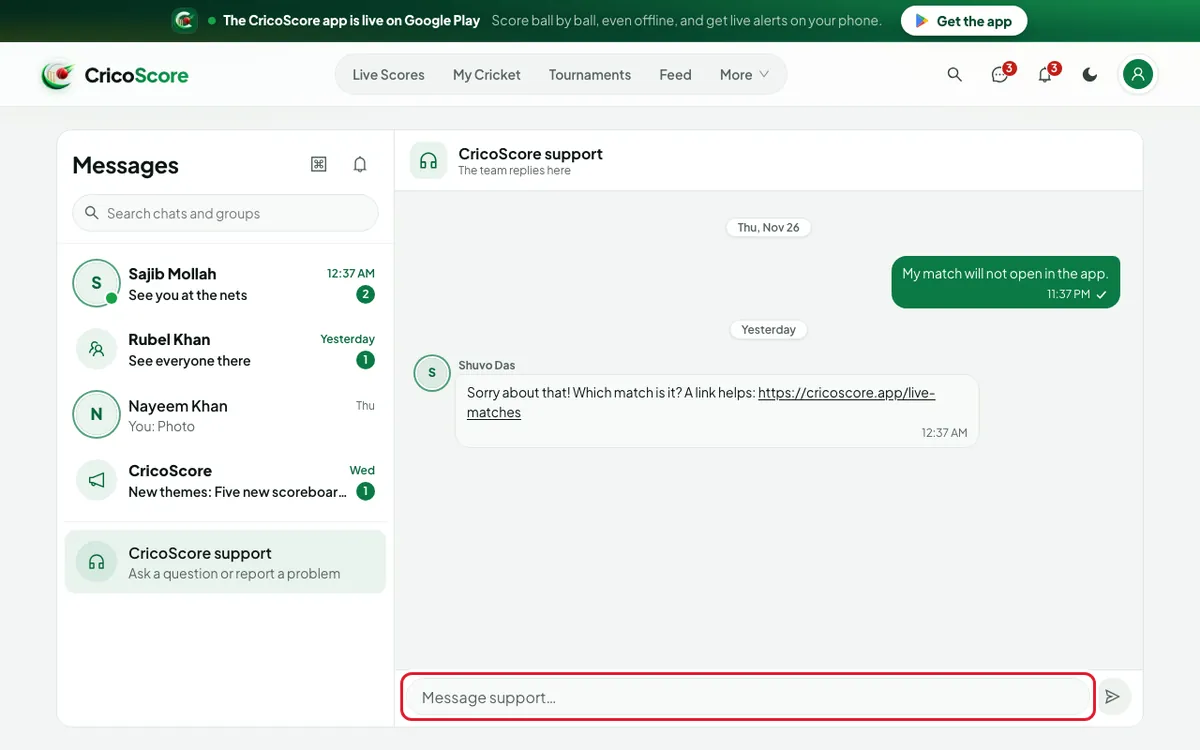
Picture 7. Tap or click to see it bigger.
Sound and notifications
In Messages, click the bell button at the top of the list.
Turn Sound on or off. Turn on Desktop notifications to see new messages when the CricoScore tab is in the background.
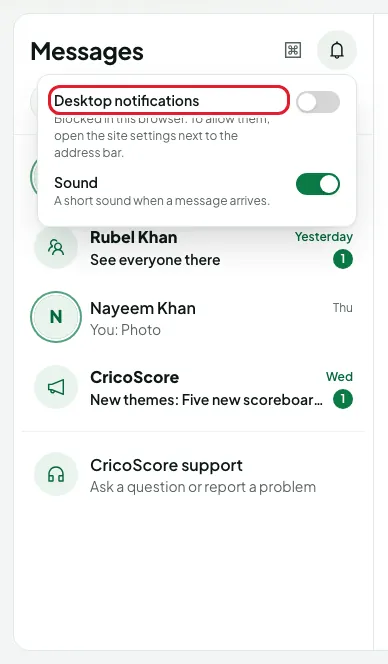
Picture 8. Tap or click to see it bigger.
If something goes wrong
| Problem | What to do |
|---|---|
| I don't see the speech bubble at the top | It shows only when you are signed in. Sign in first. |
| There is no Message button on a profile | That player has no account, or it is your own profile. |
| My message says Waiting for connection | Your internet is off. It sends by itself when you are back online. |
| My message says Not sent | Click Retry. Or click Delete to remove it. |
| Instead of the box I see a sentence about blocking | One of you blocked the other. You can't send messages in this chat. |
| The microphone does not work | Allow the microphone for cricoscore.app in your browser's settings. |
| I can't play a voice message | Some older browsers can't play voice messages sent from a computer. Try another browser, or the app. |