


Getting started
How to create an account and sign in on the website
Make a free CricoScore account on the website, or sign in to the account you already have.
Who can do this
Everyone. You don't need an account to watch scores.
Before you start
A phone or computer with internet.
Your email address or your phone number.
Already use the CricoScore app? You already have an account. Skip to "Sign in" below.
Create an account
On cricoscore.app, click the person icon at the top right (or tap it on a phone). A small menu opens.
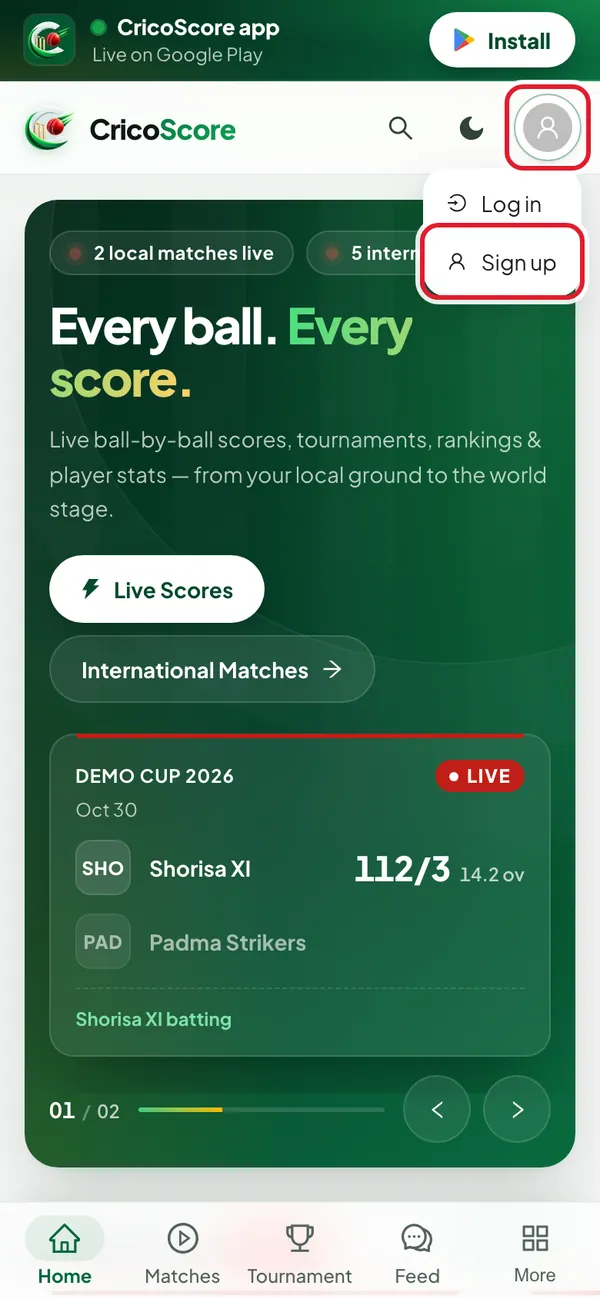
Picture 1. Tap or click to see it bigger. Click Sign up. The Create your account page opens.
In the Full name box, type your name.
In the Email or phone box, type your email or your phone number.
In the Password box, type a password. Use 6 to 64 characters.
In the Confirm password box, type the same password again.
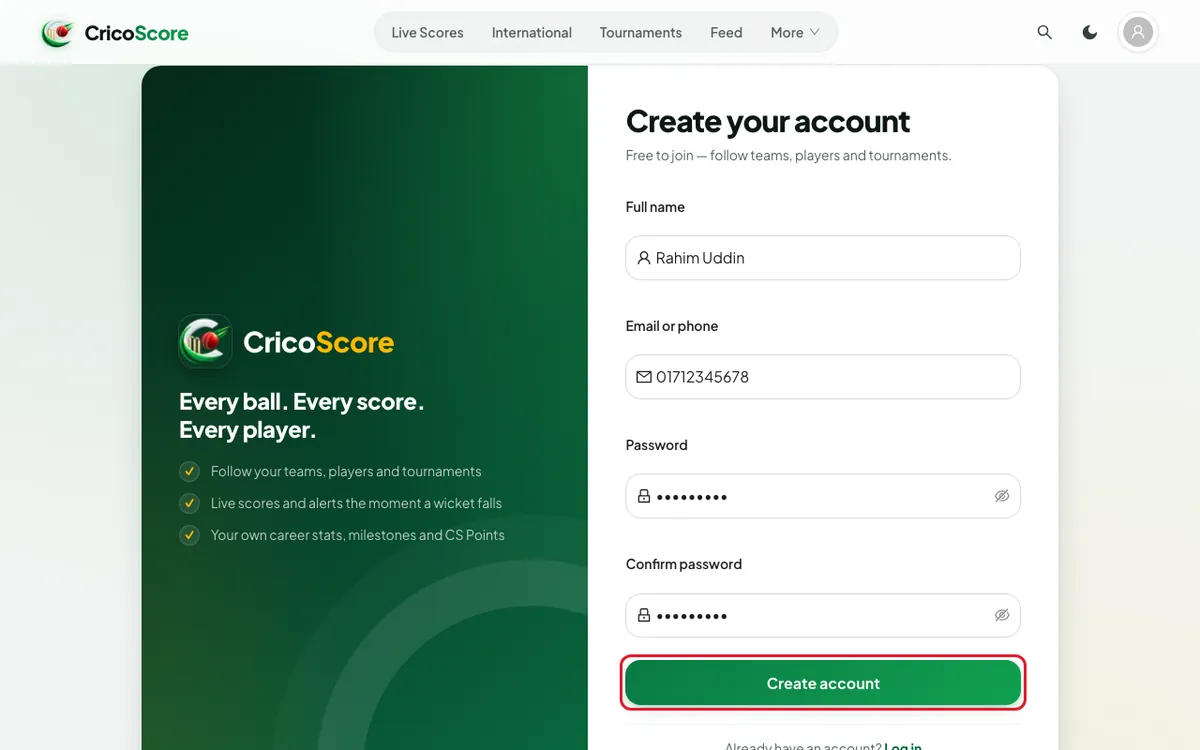
Picture 2. Tap or click to see it bigger. Click Create account. You are now signed in. The My account page opens.
Sign in
Click the person icon at the top right. Then click Log in. The Welcome back page opens.
In the Email or phone box, type your email or phone number. Type it exactly as you did when you made the account.
In the Password box, type your password.
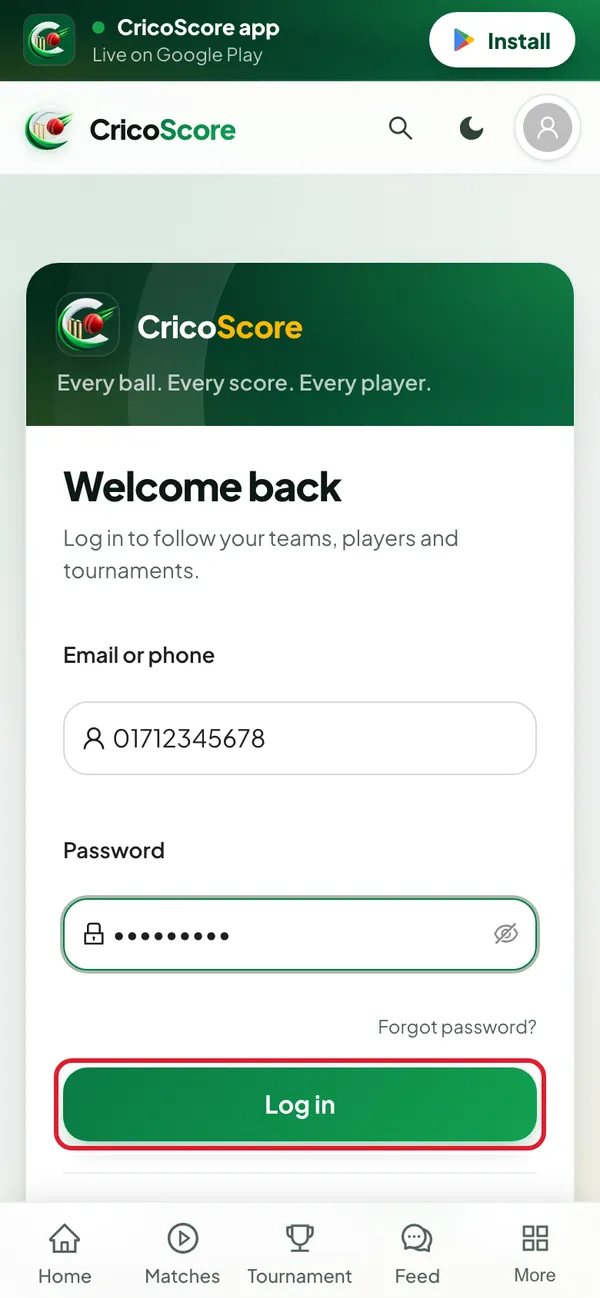
Picture 3. Tap or click to see it bigger. Click Log in. You are signed in. Your picture now shows in the person icon at the top right.
Common problems
| Problem | What to do |
|---|---|
| "An account with this email already exists" or "An account with this phone already exists" | You already have an account. Click Log in at the bottom of the form. |
| "Incorrect email/phone or password." | Check the number or email. Type it exactly as you did at sign-up. Forgot the password? See How to reset your password. |
| "Use 6 to 64 characters" | Your password is too short. Type a longer one. |
| "Passwords do not match" | Type the same password in both password boxes. |
| "Enter a valid email address or phone number" | Check what you typed in the Email or phone box. |
| "Your session expired — please sign in again." | Your 30 days ended. Sign in again. The website takes you back to your page. |
| I signed up in the app with Google or Facebook | See Where is the Google / Facebook login? |
| "This account has been deleted." | This account was deleted. It can't be brought back. Make a new account. For up to 30 days after deleting, you must use a different email or phone number. |