


Player auction
Team owner on the website, from the team link to the last bid
After this guide, your team is in the auction, has read the rules, and can bid on auction day.
Before you start
A CricoScore account. You are signed in.
The Team link from the organiser, or an invite.
Who this is for: Team owners and team admins using a computer.
Part 1: Join with the team link
Open the Team link. You see the auction name and Team applications are open.
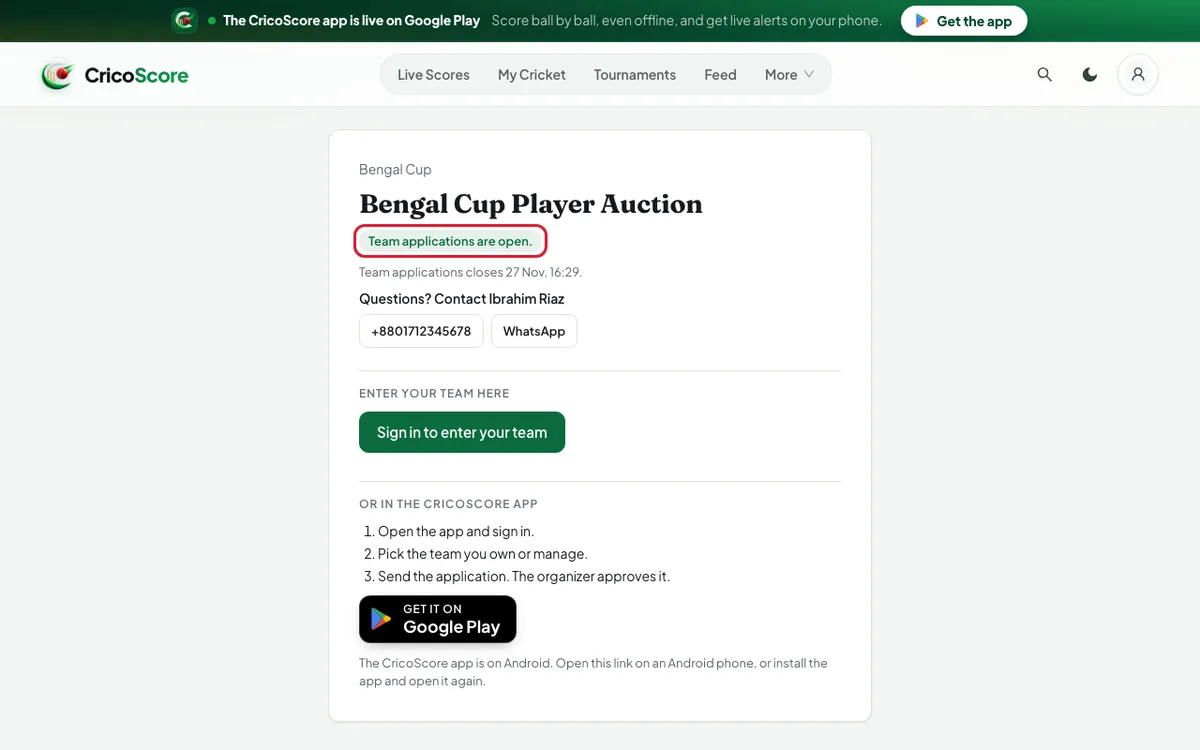
Picture 1. Tap or click to see it bigger. Not signed in? Click Sign in to enter your team.
Find your team, for example Bengal Tigers. Click Apply.
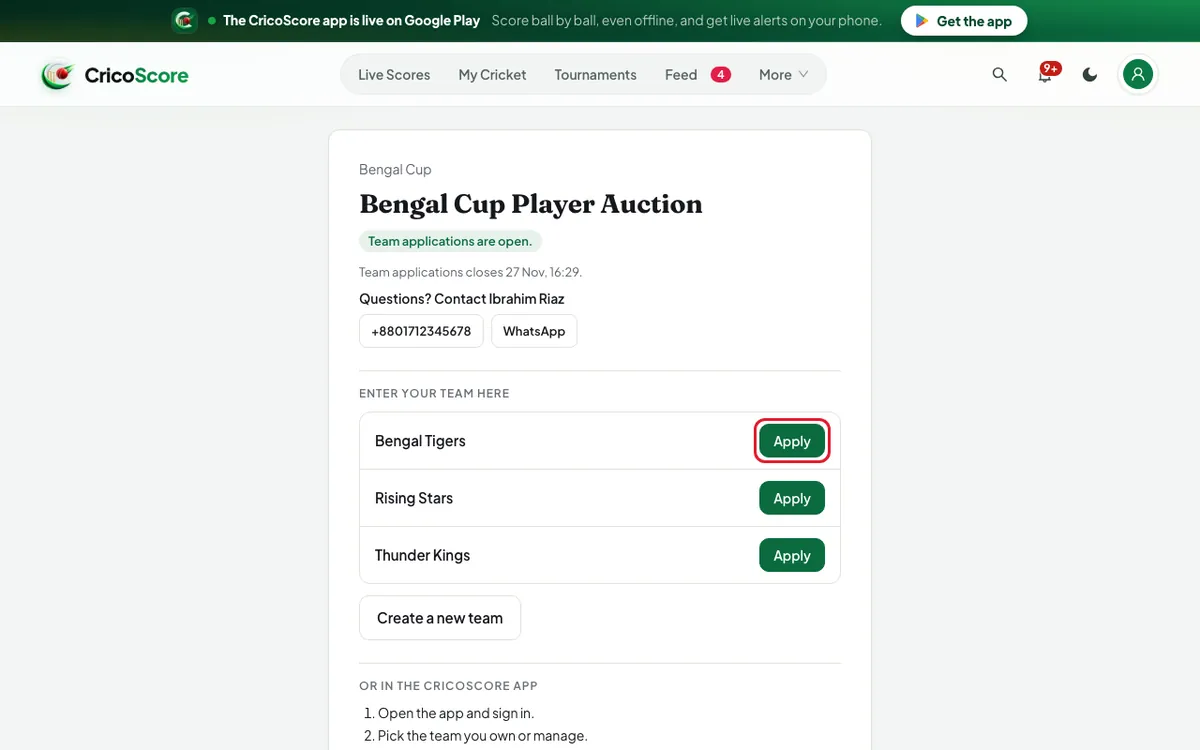
Picture 2. Tap or click to see it bigger. The organiser decides. You get a notice.
No team yet? Click Create a team. Type the Team name, then click Create team. Then click Apply.
Part 2: Accept an invite
Click your picture at the top right → My auctions. Click the Teams tab.
Your team's card shows Invited. Click Answer the invite →.
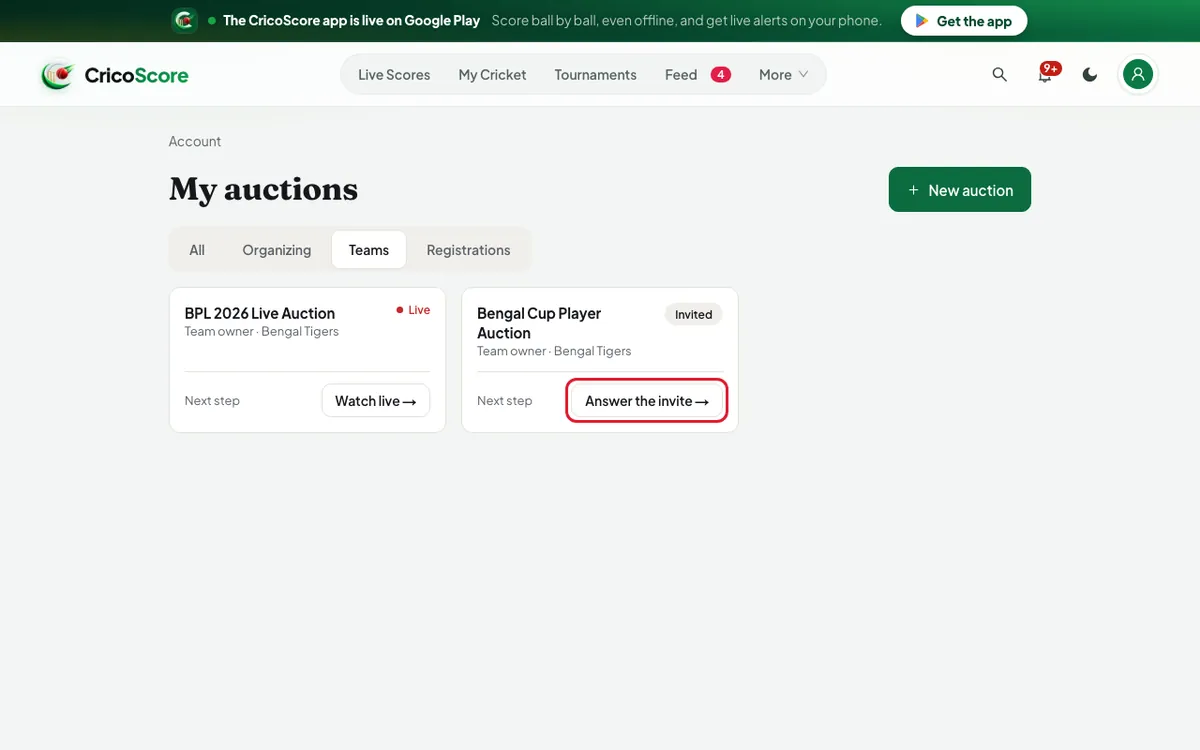
Picture 3. Tap or click to see it bigger. Click Accept. You see Your team is in. Or click Decline.
Go back to My auctions. The card now shows Approved.
Part 3: Read the rules
Every team must do this before the auction can be ready.
In My auctions, the card says rules to acknowledge. Click Read the rules →.
Read every part. At the bottom, click We have read the rules.
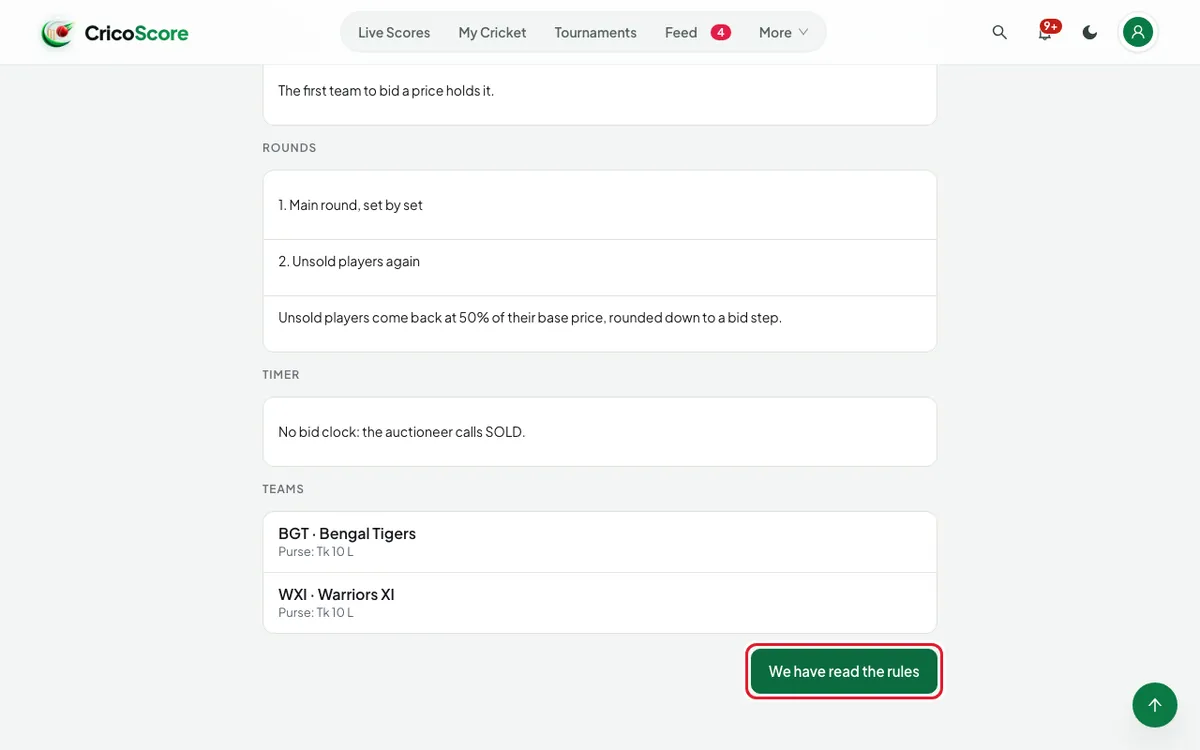
Picture 4. Tap or click to see it bigger.
Rules changed? A notice asks you to Read and accept the new rules. Do it again.
Part 4: Keep players (retentions)
This works only while the auction shows Retentions.
Open your team from My auctions.
Under Keep players from your squad, click Keep next to a player.
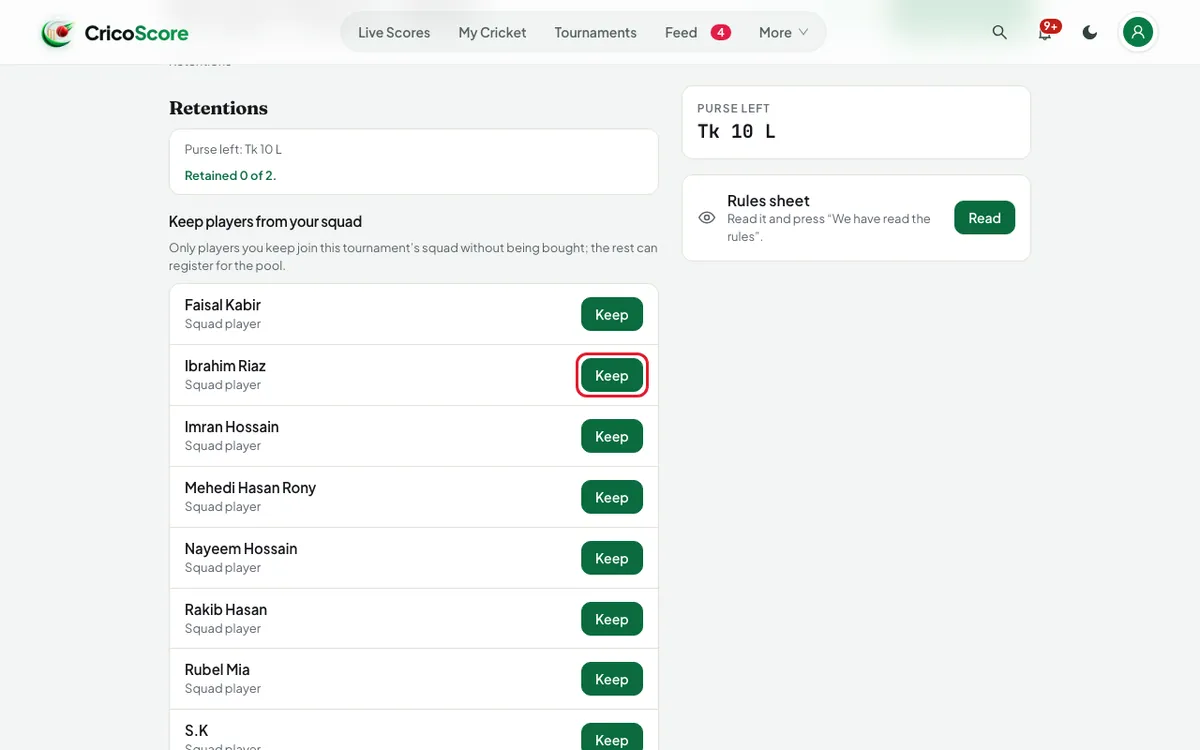
Picture 5. Tap or click to see it bigger. Under As, choose Retained or Icon player. Click Send to the organizer.
The player shows Sent to organizer. Later it shows Confirmed or Sent back. Changed your mind? Click Take back.
Your team page shows Purse left and RTM cards. Example: purse Tk 25 L, the organiser confirms one kept player at Tk 3 L. Purse left shows Tk 22 L.
Part 5: Plan with the player list
On your team page, under Player pool and shortlist, click Open.
Click the star next to a player to shortlist them.
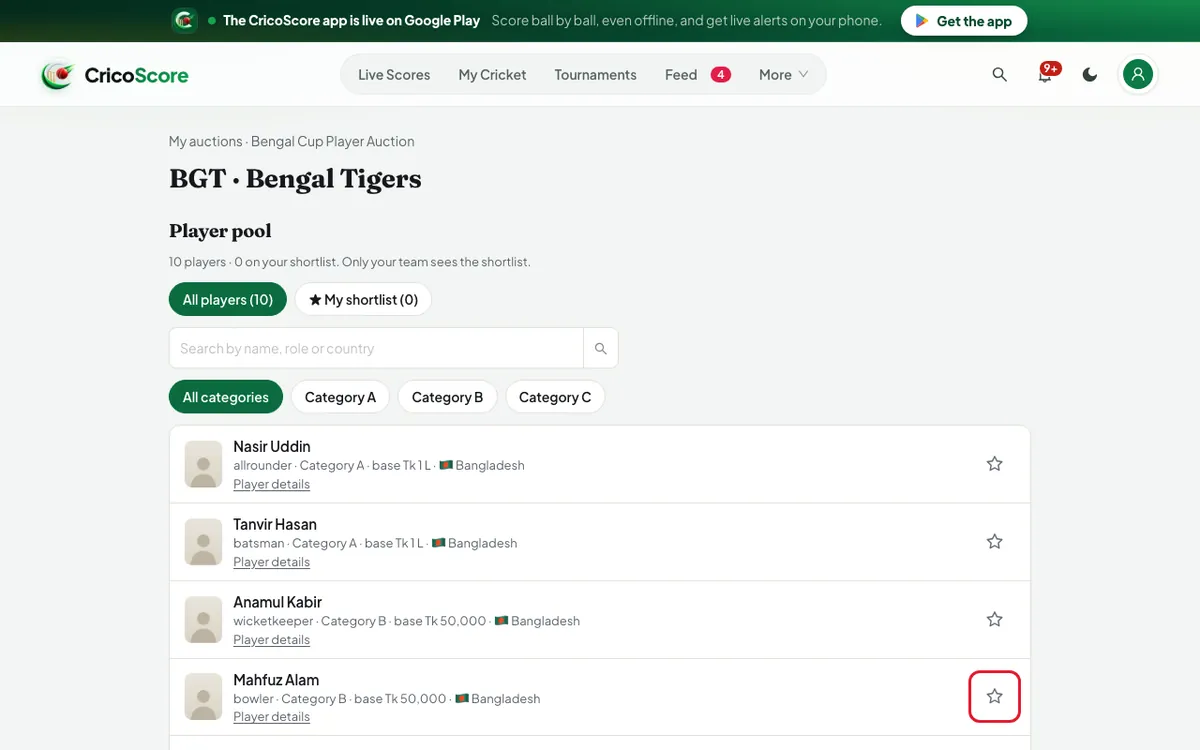
Picture 6. Tap or click to see it bigger. Click ★ My shortlist. Click Note and target, type a Target price (optional), for example "2 L", then click Save. Use ↑ Up and ↓ Down to set your order.
Only your team sees your shortlist.
Part 6: Bid on auction day
You bid from the website only if the organiser chose Auctioneer + team phones or Team phones only. Otherwise you see Raise your paddle in the hall. The auctioneer takes the bids.
In My auctions, click Watch live → on your team's card. A shared link has no Bid button.
Under Your team, click Bid with the amount, for example Bid Tk 2.5 L.
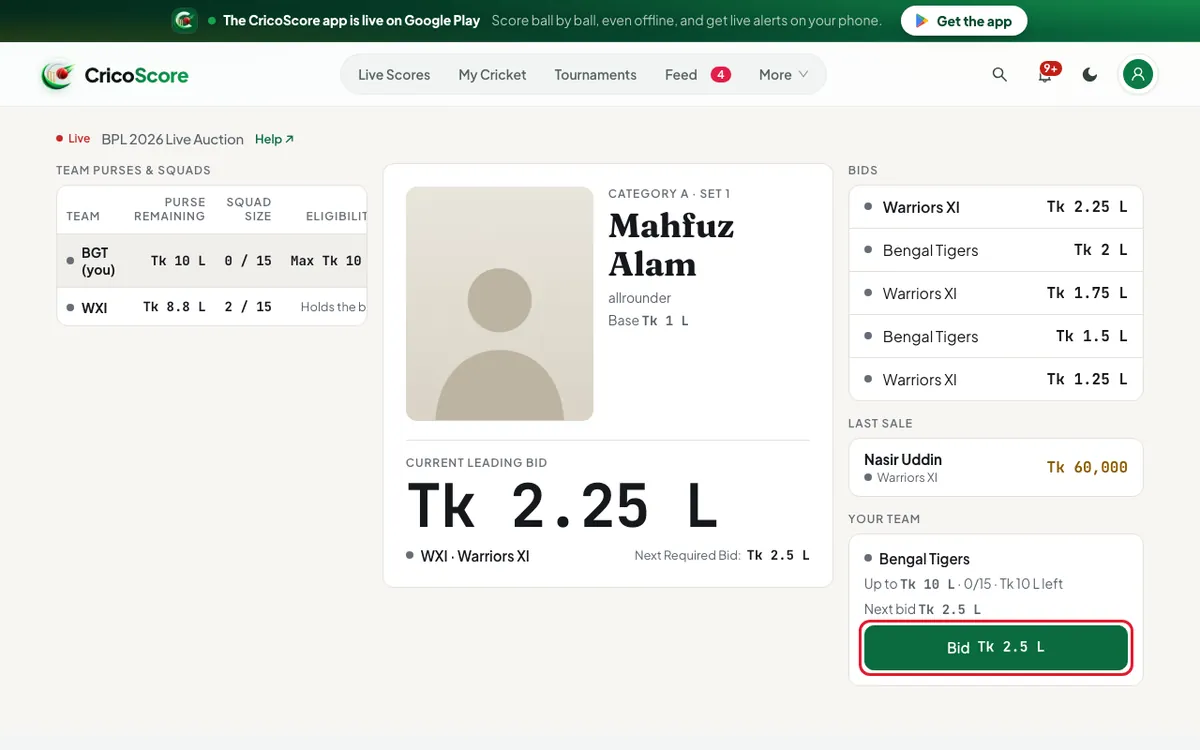
Picture 7. Tap or click to see it bigger. Check what comes out of your purse. Click Yes, bid.
You see Bid sent. You’re leading. Outbid? Click Bid again.
A button saying Squad full, Pool full, Squad rule or Not enough purse: your max is means your team can't bid on this player.
Part 7: See your squad
When the auction is over, click Results and squads → on your card. Under Squads, click your team. Click Squad picture to save a picture of it. See WK7.
Common problems
| Problem | What to do |
|---|---|
| Team applications are closed. | Ask the organiser. |
| Open this from the organizer’s team link to apply. | Open the exact link the organiser sent. |
| Someone in this team already acts for another team in this auction | One person can act for only one team. |
| This team has used all its retention slots of this kind. | Take one back, or choose Icon player. |
| No Bid button | Open the live page from My auctions, or bid in the hall. |
| What does a notice mean? | See WH10. |
What happens next
The organiser runs the auction. Watch it live and see your squad: WK7.